🖥️ KubeNidra Manager
Usage Guide
This guide provides step-by-step instructions for using Nidra Manager to manage your KubeNidra workloads.
Getting Started
1. Access the Application
Open your web browser and navigate to the Nidra Manager URL:
http://your-nidra-manager-domain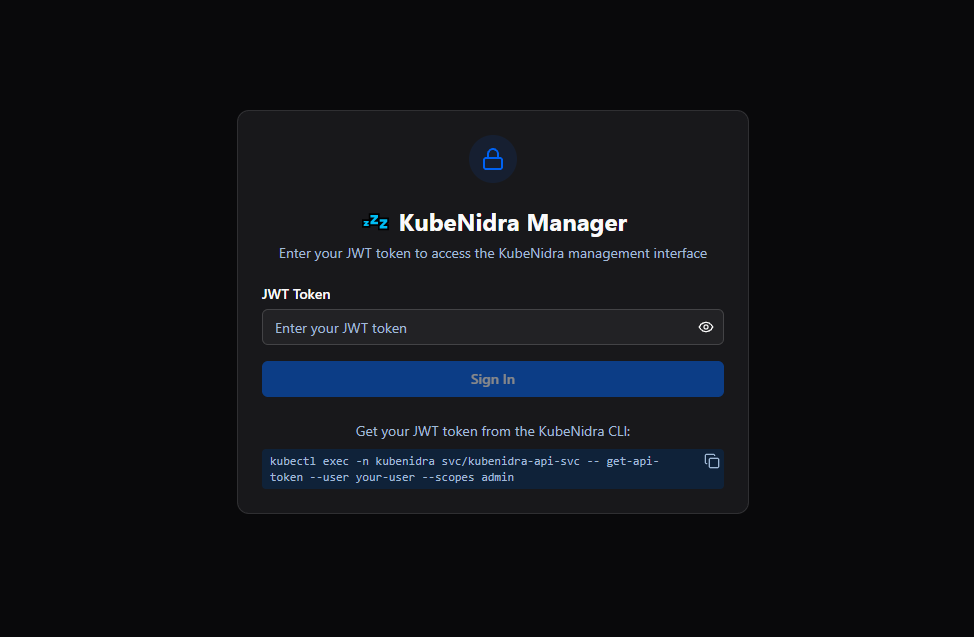
Follow the instructions and generate a JWT token for authentication.
2. Initial Setup
On first access, you'll see the main dashboard. The application will automatically:
- Connect to the KubeNidra API
- Load available namespaces
- Display workloads in the watched namespaces

Basic Operations
📋 Viewing Workloads
-
Select Workload Type: Click on the appropriate tab:
- Deployments: Most common workload type
- StatefulSets: Stateful applications
- DaemonSets: Node-level workloads
- ReplicaSets: Direct replica set management
-
Review Status: Each workload shows:
- Name: Workload name
- Status: Active, Snoozed, or Pinned
- Replicas: Current replica count
- Schedule: Wake schedule (if configured)

⚡ Enable KubeNidra
To enable KubeNidra for a workload:
- Find the Workload: Locate the workload in the list
- Click Enable: Click the "Enable" button
- Configure Schedule (Optional):
- Enter wake schedule (e.g.,
09:00-17:00,mon-fri) - Click "Save" to apply
- Enter wake schedule (e.g.,
- Confirm: The workload status will update to show it's enabled
Example Schedule Formats:
09:00-17:00,mon-fri    # Weekdays 9 AM to 5 PM
08:00-18:00            # Daily 8 AM to 6 PM
09:00-12:00,mon-wed,fri;13:00-17:00,thu  # Split schedule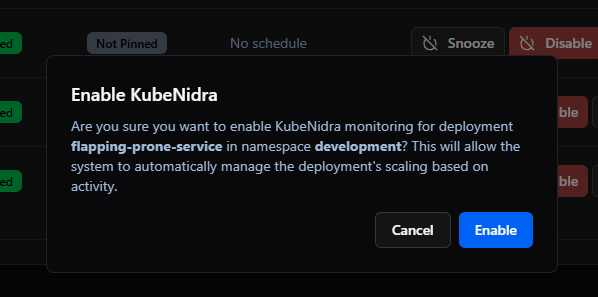
😴 Snooze Workload
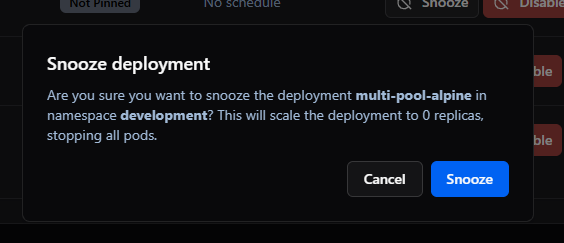
To manually snooze a workload:
- Find the Workload: Locate the active workload
- Click Snooze: Click the "Snooze" button
- Confirm: Click "Yes" in the confirmation dialog
- Monitor: Watch the status change to "Snoozed"
⏰ Wake Workload
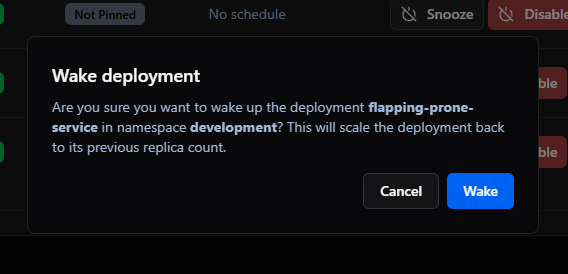
To wake a snoozed workload:
- Find the Workload: Locate the snoozed workload
- Click Wake: Click the "Wake" button
- Monitor: Watch the status change to "Active"
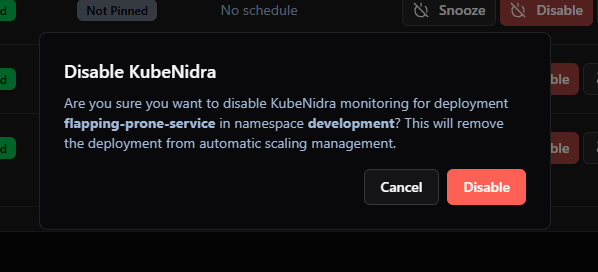
❌ Disable KubeNidra
To disable KubeNidra for a workload:
- Find the Workload: Locate the enabled workload
- Click Disable: Click the "Disable" button (❌ icon)
- Confirm: Click "Yes" in the confirmation dialog
- Verify: The workload will be removed from the KubeNidra monitoring scope
Advanced Operations
📅 Schedule Management
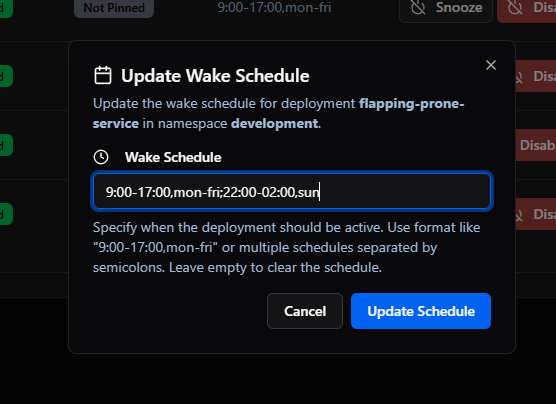
Set Wake Schedule
- Select Workload: Click on a workload to view details
- Click Schedule: Click the "Schedule" button
- Enter Schedule: Enter a valid schedule
- Save: Click "Save" to apply the schedule
Update Schedule
- Access Schedule: Click the schedule button for an enabled workload
- Modify: Change the time ranges or days
- Save: Click "Save" to update the schedule
Remove Schedule
- Access Schedule: Click the schedule button
- Clear: Remove the schedule (set input field to blank)
- Save: Click "Save" to remove the schedule
🎛️ Override Management
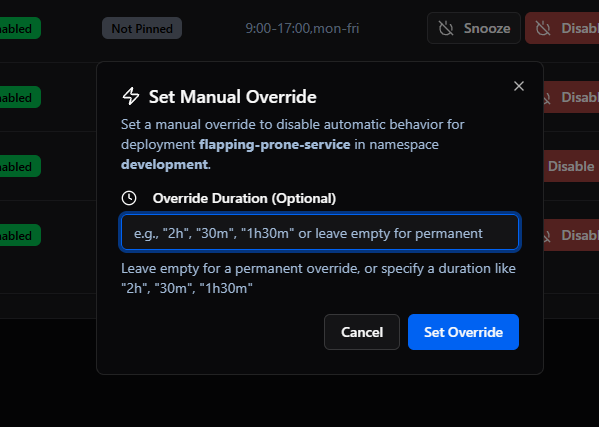
Set Temporary Override
- Select Workload: Click on a workload
- Click Override: Click the "Override" button
- Choose Duration: Enter a valid duration or leave blank for permanent override
- Confirm: Click "Apply" to set the override
Clear Override
- Find Overridden Workload: Look for workloads with override indicators
- Click Clear Override: Click the "Clear Override" button
- Confirm: Click "Yes" to remove the override
📌 State Pinning
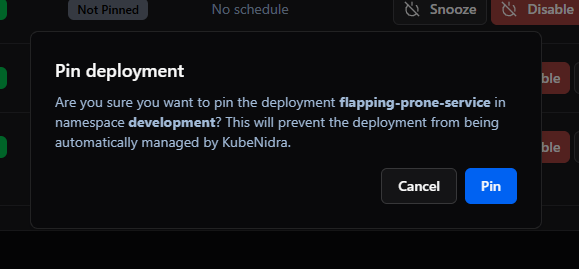
Pin Workload
- Select Workload: Click on a workload
- Click Pin: Click the "Pin" button
- Confirm: Click "Apply" to pin the workload
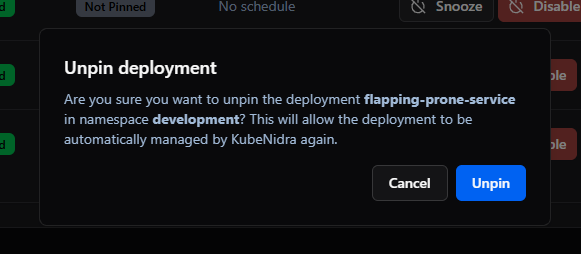
Remove Pin
- Find Pinned Workload: Look for workloads with pin indicators
- Click Unpin: Click the "Unpin" button
- Confirm: Click "Yes" to remove the pin
Monitoring & Analytics
📊 Status Overview
The dashboard provides a quick overview:
- Total Workloads: Total number of KubeNidra-enabled workloads
- Enabled Workloads: Number of workloads that KubeNidra is monitoring
- Active Workloads: Count of currently active workloads
- Snoozed Workloads: Count of snoozed workloads
- Pinned Workloads: Count of pinned workloads

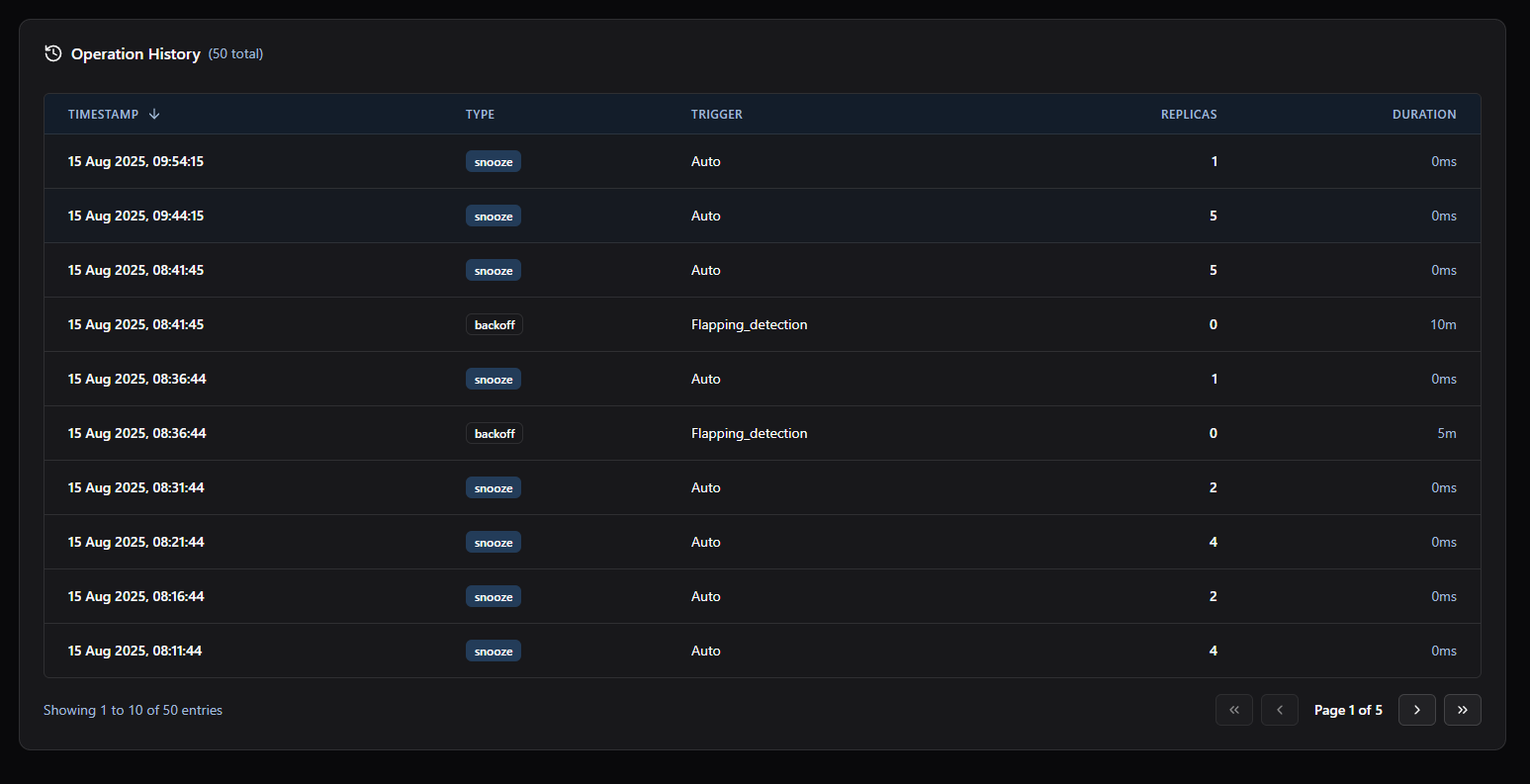
📈 Operation History
To view operation history:
- Select Workload: Click on a workload to view details
- View History: Scroll to the "Operation History" section
- Review Entries: Each entry shows:
- Timestamp: When the operation occurred
- Operation Type: Wake, Snooze, Enable, etc.
- Trigger: Manual or automatic
- Replicas: Replica count after operation
- Duration: Time taken for the operation
User Interface Features
🎨 Theme Switching
To switch themes:
- Find Theme Toggle: Look for the theme button (🌙/☀️ icon)
- Click to Toggle: Click to switch between light and dark themes
- Preference Saved: Your choice is automatically saved

📱 Mobile Usage
On mobile devices:
- Swipe Navigation: Swipe between workload type tabs
- Touch-friendly: Large touch targets for all buttons
- Responsive Layout: Automatic layout adjustment
- Simplified Interface: Optimized for small screens
Troubleshooting
🔧 Common Issues
Workload Not Appearing
- Check Namespace: Ensure you're in the correct namespace
- Refresh Page: Try refreshing the browser page
- Check API Connection: Verify the API server is running
Operation Fails
- Check Error Message: Read the error message carefully
- Verify Workload Status: Ensure the workload is in the expected state
- Check Backoff Period: Some workloads may be in backoff
- Try Again: Wait a moment and try the operation again
🆘 Getting Help
If you encounter issues:
- Check Logs: Look for error messages in the browser console
- Review Documentation: Check this usage guide
- Contact Support: Reach out to your system administrator
- Report Issues: Report bugs through your organization's process
Best Practices
✅ Recommended Workflows
- Start Small: Begin with a few test workloads
- Monitor Closely: Watch the first few operations carefully
- Set Schedules: Configure appropriate wake schedules
- Use Pinning: Pin critical workloads to prevent unwanted changes
- Review History: Regularly check operation history
⚠️ Avoid Common Mistakes
- Don't Disable Critical Workloads: Be careful when disabling KubeNidra
- Don't Set Permanent Overrides: Use temporary overrides when possible
- Don't Ignore Errors: Always read and understand error messages
- Don't Skip Confirmation: Always confirm destructive operations
🔒 Security Considerations
- Use HTTPS: Always access the application over HTTPS
- Log Out: Log out when finished using the application
- Don't Share Credentials: Keep your access credentials secure
- Report Suspicious Activity: Report any suspicious behavior